
Topic
#payments
Articles about payments from the Credit Khata blog and help centre.

New in Credit Khata: amounts in your own language, and a country check
Choose how money is written: English (PKR 1,850.00) or your language's own digits and sign (٣٧٫٥٠ ر.س). Shop owners whose countries don't match confirm them once.
New in Credit Khata: payments, disputes, reminders and more
Credit Khata now helps settle the ledger, not just keep it: customers pay by wallet and tap I've paid, confirm or dispute entries, and get one-tap reminders, with limits and more.

Accept JazzCash, Easypaisa and Raast payments in a small shop
Share one wallet number and one bank or Raast account, ask customers for the transaction ID, check your own account before you mark anything paid, and match each payment to the right customer.
Confirm your shop's country and your own country
When the countries we know for you don't match, the counter asks the shop owner once: Check your countries. Confirm your shop's country and your own, or tap Later.
Record a payment received from a customer
Open the customer, choose Paid under Add transaction, enter the amount and tap Add transaction. Their balance drops at once; part payments are fine.
For customers: open your account, check entries and pay the shop
Open the link your shop sent, or enter their login code. You see your balance and every entry; tap an entry to confirm or report it, and tap Pay, then I've paid, to pay them.
Confirm a payment a customer says they made
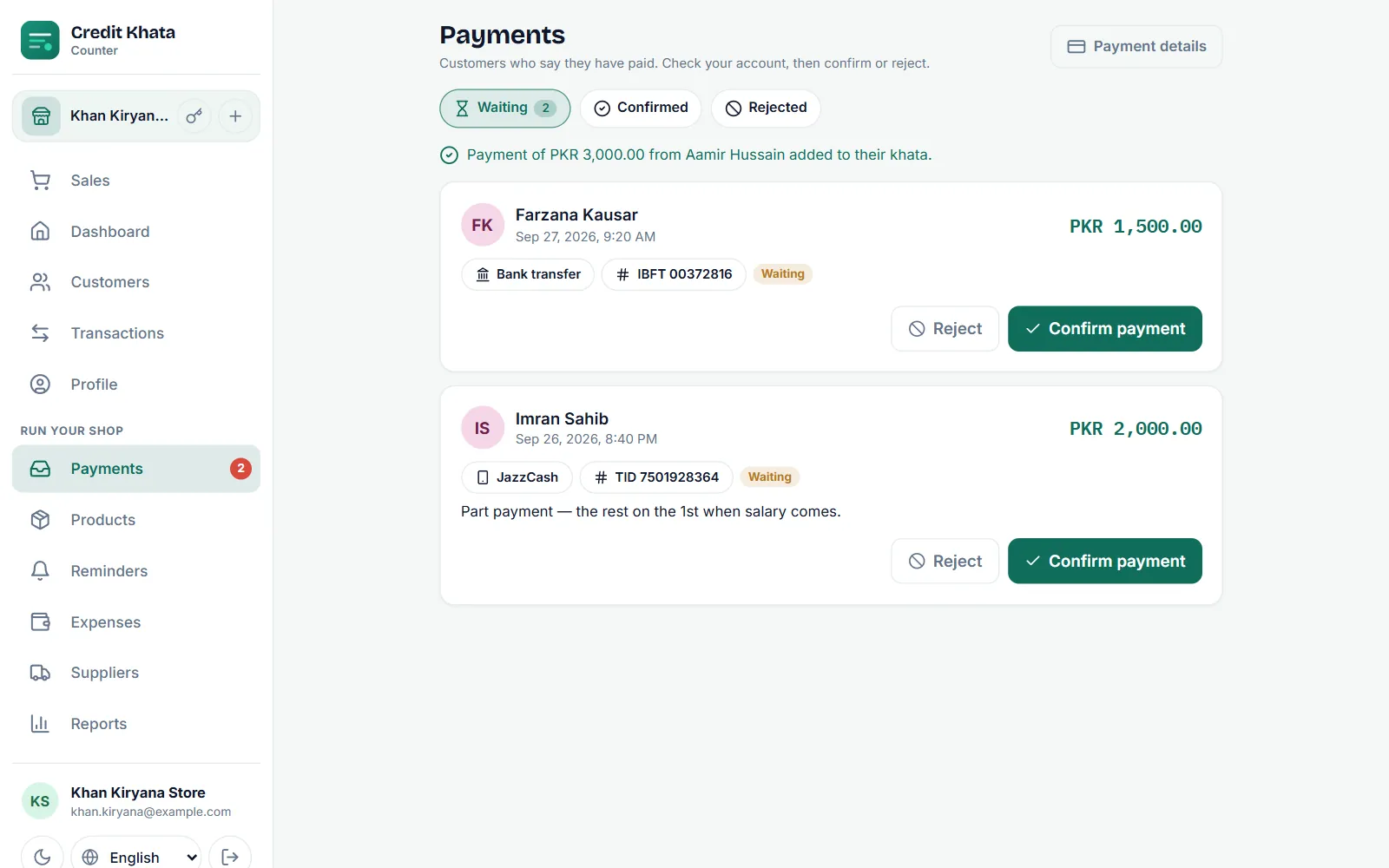
When a customer taps I've paid, the claim waits in Payments. Check your wallet or bank, then tap Confirm payment to add it to their account, or Reject with a reason.
Add your JazzCash, Easypaisa or bank details so customers can pay you
Go to Payments → Payment details, tap JazzCash, Easypaisa, Raast or Bank transfer, enter the account name and number and Save. Customers see them when they tap Pay.