
Help centre
How can we help?
A shared credit ledger for your shop and your customers. Find a topic below or search: every guide shows the real screens.
Try reminders, staff logins or working offline. Press / to search from anywhere.
Browse by topic
19 guidesPopular answers
- Book a credit sale at the counterOn Sales, pick the customer under Booking sale to, choose Credit, add each item with its quantity and amount, then tap Add to credit. The total joins their balance.
- Open your shop account and add your first customerIn the counter app tap Open a shop and finish three short steps. Then go to Customers → New customer, add a name, phone and any old balance, and share their account.
- Add your JazzCash, Easypaisa or bank details so customers can pay youGo to Payments → Payment details, tap JazzCash, Easypaisa, Raast or Bank transfer, enter the account name and number and Save. Customers see them when they tap Pay.
- Set a credit limit and a due date for a customerOpen the customer, tap Limits, enter a Credit limit and pick a Pay by date, then Save. The counter warns before a sale goes past the limit; late accounts show as Overdue.
- Send payment reminders on WhatsApp or SMSTap Remind on a customer, or open Reminders → Overdue and tap Remind all. Each reminder opens in your own WhatsApp or SMS app with the balance, due date and a link to their account.
- For customers: open your account, check entries and pay the shopOpen the link your shop sent, or enter their login code. You see your balance and every entry; tap an entry to confirm or report it, and tap Pay, then I've paid, to pay them.
Getting started
Set up your shop, add customers and book your first entry.
- Open your shop account and add your first customerIn the counter app tap Open a shop and finish three short steps. Then go to Customers → New customer, add a name, phone and any old balance, and share their account.
- Book a credit sale at the counterOn Sales, pick the customer under Booking sale to, choose Credit, add each item with its quantity and amount, then tap Add to credit. The total joins their balance.
Customers & the ledger
Credit entries, balances, limits and disputes.
- Set a credit limit and a due date for a customerOpen the customer, tap Limits, enter a Credit limit and pick a Pay by date, then Save. The counter warns before a sale goes past the limit; late accounts show as Overdue.
- When a customer disputes an entry: check, correct and resolveCustomers can mark any entry Looks right or Report a problem. Disputed entries show on your dashboard; check the note, tap Resolve with a reply, and correct the ledger if needed.
Payments, due dates & reminders
Get paid by JazzCash, Easypaisa or bank, confirm payments and send reminders.
- Record a payment received from a customerOpen the customer, choose Paid under Add transaction, enter the amount and tap Add transaction. Their balance drops at once; part payments are fine.
- Add your JazzCash, Easypaisa or bank details so customers can pay youGo to Payments → Payment details, tap JazzCash, Easypaisa, Raast or Bank transfer, enter the account name and number and Save. Customers see them when they tap Pay.
- Confirm a payment a customer says they madeWhen a customer taps I've paid, the claim waits in Payments. Check your wallet or bank, then tap Confirm payment to add it to their account, or Reject with a reason.
- Send payment reminders on WhatsApp or SMSTap Remind on a customer, or open Reminders → Overdue and tap Remind all. Each reminder opens in your own WhatsApp or SMS app with the balance, due date and a link to their account.
Shop, staff & products
Products and stock, staff accounts, expenses and suppliers.
- Add products, track stock and see what is running lowOpen Products → Add product, enter a name, price and stock, and set Warn when stock falls to. Sales from the list reduce stock; the Low stock filter shows what to reorder.
- Give staff their own logins: manager or cashierOn Pro, go to Profile → Staff → Add staff, enter their name and their own email or phone number, choose Manager or Cashier, and save. Copy the password shown once, or show a sign-in QR.
Reports & statements
Receivables, ageing, sales and customer statements.
- Reports: cash book, old dues, sales and profitOpen Reports for four views: Cash book (money in and out), Old dues (who has owed for how long), Sales (credit and cash by day or month) and Profit (an estimate after costs).
- Print or share a customer's account statementOpen the customer, tap Statement, pick the period and tap Open statement. Then use Print / Save as PDF to print it or keep a PDF you can send on WhatsApp.
For customers
Check your khata, pay the shop and question an entry from your own phone.
Account, sync & privacy
Working offline, sync, languages, your data and your account.
- Work offline and keep your ledger in syncSales rung up without internet are saved on the device, marked Pending, and upload by themselves in order, exactly once, when the connection returns. Check the sync pill.
- Change the app language (Urdu, Arabic, Hindi and more)Pick a language from the globe menu on the sign-in screen, in the counter's sidebar or in Profile → Language. Fourteen languages; Urdu, Arabic and Persian read right to left.
- Show amounts in English or in your own languageNext to the language menu, How amounts look offers English (PKR 1,850.00) or My language (1,850.00 روپے, ٣٧٫٥٠ ر.س). It is saved on your account, and what you send follows it.
- Download your data, secure your account or delete itExport customers as CSV or download everything as one file from Profile → Security and data. Turn on two-step sign-in there too. Delete your account from Profile.
- Add, change or remove your profile photoCustomers add a photo on each shop account, and only that shop sees it. Owners and staff add their own in Profile. A shop owner or manager can take down a customer's photo.
- Confirm your shop's country and your own countryWhen the countries we know for you don't match, the counter asks the shop owner once: Check your countries. Confirm your shop's country and your own, or tap Later.
From the blog
All posts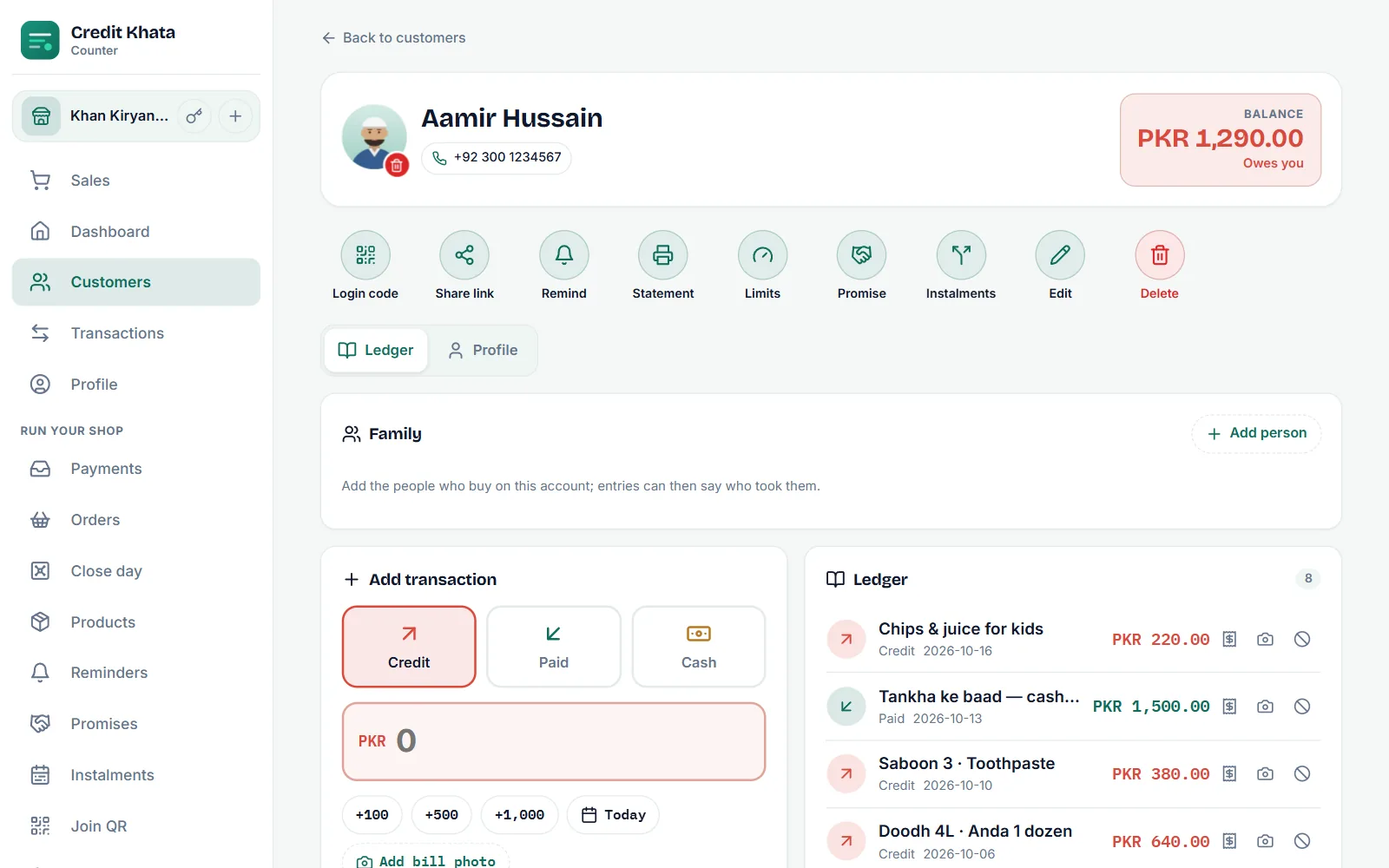
New in Credit Khata: profile photos for customers, owners and staff
Customers can add a photo on each shop account, seen only by that shop. Owners and staff add their own, and an owner or manager can take down a customer's photo.

New in Credit Khata: amounts in your own language, and a country check
Choose how money is written: English (PKR 1,850.00) or your language's own digits and sign (٣٧٫٥٠ ر.س). Shop owners whose countries don't match confirm them once.
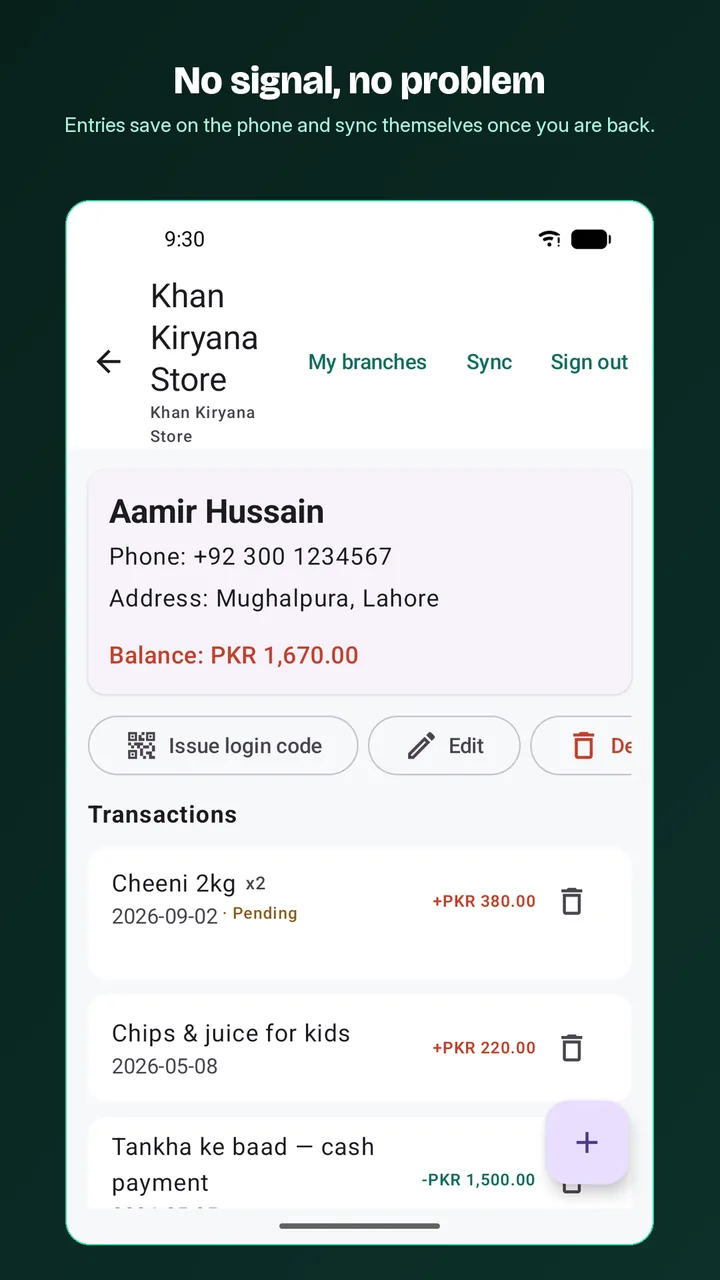
Why an offline-first ledger matters for small shops
An offline-first ledger saves each entry on the device first and uploads it later, so the counter never waits for the network, and a careful sync makes sure nothing is lost or doubled.
Still stuck?
Write to us — a person reads every message, usually within a working day.